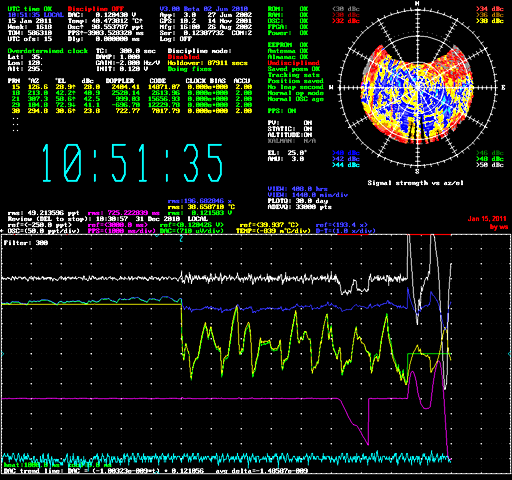
This program monitors and controls the operation of various GPS-disciplined frequency standards.
Download Lady Heather V5.01 (Windows)
Download previous release of Lady Heather
(V3.10 of June 18, 2012, Windows setup program
Linux build instructions (readme.txt) for beta version
Updated Linux build instructions for the newer V6 version on BeagleBone Black
Zipfile for Linux and other OSes; see readme.txt above
Copyright (C) 2008-2016 Mark S. Sims - all rights reserved
Permission granted for free noncommercial use and distribution
Win32 translation and TCP/IP server by John Miles, KE5FX
C++ sources and makefile will be installed in the same directory as the Windows executable.
Allan deviation code adapted from Tom Van Baak's adev1.c
Temperature and oscillator control algorithms by Warren Sarkinson
Easter and moon-phase code from voidware.com
See the .PDF document linked below for further credits.
Some brief release notes. . .
Heather now has some proper user documentation. Check the heather.pdf file and/or the comments in the first 3500+ lines of the heather.cpp file. Heather can be compiled for Linux (including the Raspberry Pi) and macOS. See the Linux files linked above for compilation instructions.
There are MANY new features in Heather V5, including support for numerous receiver types. Heather will attempt to autodetect the receiver type at startup time, but you can bypass autodetection and specify an explicit receiver type using the new /rx... command line options as noted in the documentation.
Note that some receiver types cannot be auto-detected at all, while others that transmit NMEA messages by default can be addressed in their native binary language using the /rx commands. Native binary mode provides more data and allows more control over the receiver configuration and settings.
Currently-supported receivers include:
After installing Heather, you should edit the heather.cfg file (or the PROPERTIES setting for the desktop icon) for your desired configuration. Everybody should change the /tz... option for their time zone... it comes set up for the US central time zone by default. International uses should add a /b... command to set their daylight savings time information.
For convenience, Windows users can press the "n" key to edit the heather.cfg file in Notepad. Changes will take effect after you restart Heather or issue an r heather.cfg keyboard command.
Command-line Options for Current Release (V5.XX)
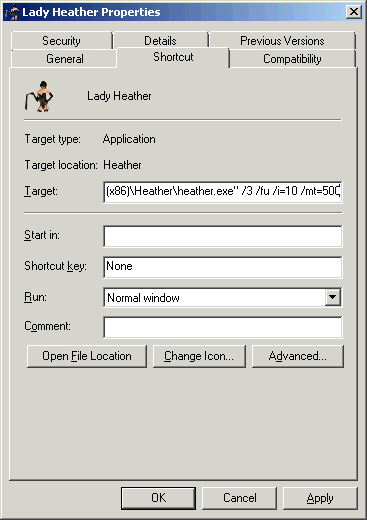
Startup command line options should be placed on the TARGET line in the
Lady Heather program PROPERTIES or in the HEATHER.CFG file.  Most can also
be executed with the keyboard / command.

If the pathname to the executable is enclosed in quotes, any command-line
options MUST appear outside the quotes as in the example at right.

Valid command line options are:
   /0               - disable com port processing (if just reading a log file)
   /1..99           - use COM1 .. COM99 for receiver i/o
   /ip=addr[:port#] - connect to TCP/IP server instead of local COM port
   /a[=#]           - number of points to calc Adevs over (default=330000)
                      If 0,  then all adev calculations are disabled.
   /b[=#]           - set daylight savings time area (1=USA,2=EURO,3=AUST,4=NZ)
   /b=nth,start_day,month,nth,end_day,month,hour - set custom DST rule
                      day:0=Sun..6=Sat  month:1=Jan..12=Dec
                      nth>0 = from start of month  nth<0 = from end of month
   /br[=#]          - set serial port configuration. (default 9600:8:n:1)
   /bs              - set time display to solar time
   /bt              - start up in terminal emulator mode
   /c[=#]           - set Cable delay to # ns (default=77.03 ns (50 ft std coax))
   /c=#f              set Cable delay in feet of 0.66Vp coax
   /c=#m              set Cable delay in meters of 0.66Vp coax
   /d#              - show dates in calendar #
                      A)fghan   haaB)     C)hinese  D)ruid   H)ebrew
                      I)slamic  J)ulian   K)urdish  M)jd    iN)dian
                      P)ersian  iS)o      T)zolkin  boliV)isn
                      X)iuhpohualli       maY)an    aZ)tec Tonalpohualli
   /de[=#]          - set debug information level
   /dl[=file]       - write debug information log file
   /dr[=file]       - write raw receiver data capture file
   /e               - do not log message/time Errors and state changes
   /f[psakit]       - toggle Pv,Static,Altitude,Kalman,Ionosphere,Troposphere filter
   /fd[=#]          - set display filter count to # seconds (default=10)
   /fg              - toggle GPX format for scheduled log dumps
   /fx              - toggle XML format for scheduled log dumps
   /g[#]            - toggle Graph enable (#= a,b,c,d,e,h,l,m,o,p,s,t,u,x,z)
                      (Adevs  Both map and adev tables  sat_Count  Dac  Errors
                       Holdover  K(constallation changes)    hide Location
                       Map,no adev tables   Osc  Pps  R(RMS info)   Sound  Temperature
                       Watch  X(dops)  Z(clock)  J(el mask)
                       N(disable holiday greetings)  Q(signal quality map)
                       0) .. 9) toggle plots G0..G9   V)toggle LLA plots
   /h=file          - read command line options from .CFG config file
   /i[=#]           - set plot Interval to # seconds (default=24 hour mode)
   /ir              - set read-only mode for receiver commands
   /is              - set read-only mode for serial port
   /it              - set no-pollng mode for receiver data
   /j[=#]           - set ADEV sample period to # seconds (default=10 seconds)
   /kb              - toggle Beep sounds
   /kc              - toggle writes to Config EEPROM
   /ke              - toggle quick exit with ESC key
   /kj              - toggle showing sun and moon in satellite maps
   /km              - toggle mouse enable
   /kq              - toggle Keyboard enable
   /ks              - toggle Sound files
   /kt              - toggle Windows dialog/message timer
   /k?[=#]          - set temp control PID parameter '?'
   /l[=#]           - write Log file every entry # seconds (default=1)
   /lc              - don't write any comments in the log file
   /ld              - write signal level comments in the log file
   /lo              - enable reading of old format log files
   /lh              - don't write timestamp headers in the log file
   /ls              - change log file value separator from tab to a comma
   /m[=#]           - Multiply all plot scale factors by # (default is to double)
   /ma              - toggle Auto scaling
   /md[=#]          - set DAC plot scale factor (microvolts/divison)
   /mi              - invert pps and temperature plots
   /mo[=#]          - set OSC plot scale factor (parts per trillion/divison)
   /mp[=#]          - set PPS plot scale factor (nanoseconds/divison)
   /mt[=#]          - set TEMPERATURE plot scale factor (millidegrees/divison)
   /m0../m9[=#]     - set scale factors of the other plots (units/divison)
   /n=hh:mm:ss      - exit program at specified time (optional: /n=month/day/year)
   /na=hh:mm:ss     - sound alarm at specified time (optional: /na=month/day/year)
   /na=#?           - sound alarm every #s secs,  #m mins,  #h hours  #d=days
   /na=#?o          - sound alarm Once in #so secs,  #mo mins,  #ho hours  #d=days
   /nd=hh:mm:ss     - dump screen at specified time (optional: /n=month/day/year)
   /nd=#?           - dump screen every #s secs,  #m mins,  #h hours  #d=days
   /nd=#?o          - dump screen Once in #so secs,  #mo mins,  #ho hours  #d=days
   /nl=hh:mm:ss     - dump log at specified time (optional: /n=month/day/year)
   /nl=#?           - dump log every #s secs,  #m mins,  #h hours  #d=days
   /nl=#?o          - dump log Once in #so secs,  #mo mins,  #ho hours  #d=days
   /nr[=#]          - force receiver navigation rate to # Hz (default=1)
   /nt              - attempt to wake up Nortel NTGxxxx receivers
   /nx=hh:mm:ss     - exit program at specified time (optional: /n=month/day/year)
   /nx=#?o          - exit program in #s secs,  #m mins,  #h hours  #d=days
   /o[#]            - select ADEV type (#=A,H,M,T, O,P)
                      Adev  Hdev  Mdev  Tdev  O=all osc types  P=all pps types
   /p               - toggle PPS output signal enable
   /pd              - disable PPS output signal
   /pe              - enable PPS output signal
   /po=lat,lon,alt  - force posiiton to lat,lon,altitude
   /q[=#]           - set size of plot Queue in seconds (default=3 days)
   /qf[=#]          - set max size of FFT (default=4096)
   /r[=file]        - Read file (default=tbolt.log)
                      .log  ,xml  .gpx (log files)
                      .scr=script   .lla=lat/lon/altitude
                      .log=log   .scr=script   .lla=lat/lon/altitude
                      .adv=adev  .tim=ti.exe time file
   /ro[=#]          - add # seconds to the GPS receiver date/time
                      or /ro says 1024 weeks,  /ro=2* says 2048 weeks, etc
   /rs=file         - get input from raw receiver data simulation file
   /rt[=#]          - use Resolution-T serial port config (9600,8,ODD,1)
                      [#=1]=force Resolution-T  [#=2]force Resolution SMT
   /rx#[=leapsecs]  - set receiver type # (A=Acron  C=UCCM  D=Datum  E=NEC  G=GPSD
                      J=Jupiter  K=Z3811A  M=Motorola  N=NMEA  R=Resolution-T
                      S=SIRF  T=TSIPU=Ublox  V=Venus  X=system clock  8=NVS
                      Y=SCPI-(NORTEL)  Z=SCPI-(Z3801A)  5=SCPI-(Z3816A, HP53xxx)r
                      For receivers that do not report a valid leapsecond
                      count you can specify the value to use
   /si[=#]          - set maximum number of displayed satellites to #
   /sp[=#]          - do Precison Survey (# hours,  default=48/max=96)
   /sr[=#]          - enable sunrise/set display
   /ss[=#]          - do Self Survey (# fixes,  default=2000)
   /st              - toggle drawing of satellite position trails
   /ta              - show dates in European dd.mm.yy format.
   /tb              - do not label the analog watch face.
   /tb=string       - set analog watch face brand name.
   /tc              - show Celcius temperatures
   /td              - show DeLisle temperatures
   /te              - show Reaumur temperatures
   /tf              - show Fahrenheit temperatures
   /tg              - sync outputs to GPS Time (default is UTC time)
   /th[=#]          - chime clock mode.  Chimes # times per hour.
                      Tries to play heather_chime.WAV,  else uses alarm sound.
   /th[=#H]         - cuckoo clock mode.  Sings .WAV files # times per hour.
                      Tries to play heather_chime.WAV,  else uses alarm sound.
                      Chimes the hour number on the hour,  one chime at other times.
   /th[=#S]         - singing chime clock mode.  Sings .WAV files # times per hour.
                      Tries to play souns file heather_songxx.WAV (xx=minute)
   /th=1B           - enables ships bells clock mode.
   /th=0B           - disables ships bells clock mode.
   /ti              - toggle 12/24 hour digital clock mode
   /tj              - don't remove effects of tbolt firmware temperature smoothing
   /tk              - show Kelvin temperatures
   /tm              - show altitude in meters
   /tn              - show Newton temperatures
   /to              - show Romer temperatures
   /tp              - show time as fraction of a day
   /tq              - show time as total seconds of the day
   /tr              - show Rankine temperatures
   /ts[odhm]        - set operating system time to UTC (once,daily,hourly,every minute)
   /tsa[=#]         - set operating system time to UTC anytime difference exceeds # msecs
   /tsx[=#]         - compensate for delay between 1PPS output and receiver timing message
                      Value is in milliseconds.  Default is a +45 millisecond delay
   /tsj             - toggle show digital clock Julian date.time
   /tsz             - toggle show digital clock with milliseconds
   /tt=#            - set active temp control setpoint to # degrees C
   /tu              - sync outputs to UTC Time (default is UTC time)
   /tw[=#]          - Sleep() for # milliseconds when idle (default=10)
   /tx              - show osc values with eXponent (default is ppb/ppt)
   /ty[=#]          - show temperatures to # decimal places
   /tz=#SSSSS/DDDDD - show time at local time zone - #=gmt offset
                      SSSSS=standard time zone id   DDDDD=daylight time zone id
                      (note:  western hemisphere # is negative:  /T=-6CST/CDT)
   /t'              - show altitude in feet
   /t"              - use degrees.minutes.seconds for lat/lon
   /u               - toggle plot/adev queue Updates
   /uc=val          - force UTC delatT values
   /ud=val          - set oscillator disciplining damping value
   /ut=val          - set oscillator disciplining time constant value
   /ug=val          - set oscillator disciplining gain value
   /up=val          - set UCCM GPSDO pullin range
   /ui=val          - set oscillator disciplining initial dac value
   /uh=val          - set oscillator maximum allowed DAC value
   /ul=val          - set oscillator minimum allowed DAC value
   /un=val          - set oscillator disciplining minimum dac value
   /uo=val          - force UTC-GPS leapsecond offset
   /ux=val          - set oscillator disciplining maximum dac value
   /vt              - Text only Video screen
   /vu              - Undersized (640x480) Video screen
   /vs              - Small (800x600) Video screen
   /vm              - Medium (1024x768) Video screen (default)
   /vn              - Netbook (1000x540) Video screen
   /vl              - Large (1280x1024) Video screen
   /vv              - Very large (1440x900) Video screen
   /vx              - eXtra large (1680x1050) Video screen
   /vh              - Huge (1920x1080) Video screen
   /vc=colsXrows    - custom screen size (e.g. /vc=1200x800)
   /vf              - start in Fullscreen mode
   /vi              - invert black and white on screen
   /wa=file         - set log file name to Append to (default=tbolt.log)
   /w=file          - set log file name to Write (default=tbolt.log)
   /x=#             - set experimental oscillator disiplining PID value
   /y               - optimize plot grid for 24 hour display (/y /y = 12hr)
   /y=#             - set plot view time to # minutes/division
   /z[#][=val]      - toggle or set graph zero line ref value (#=d,o,p,t,0..9)
                      (D)ac volts  (O)sc   (P)ps ns  (T)temp deg  (0)..(9)other plots
   /+               - sync PPS signal rising edge to time
   /-               - sync PPS signal falling edge to time
   /^               - toggle OSC signal edge referenced to the PPS signal
   /^f              - set OSC signal falling edge referenced to the PPS signal
   /^r              - set OSC signal rising edge referenced to the PPS signal
For example, to get a fullscreen display at 1280x768 (assuming your DirectDraw drivers support that resolution) with the
satellite position and signal quality maps enabled, try heather.exe /1 /vc=1280x768 /fu /gz1 /gq1 /gb1 /y /y /y /fd=300 . This assumes the Thunderbolt is connected at COM1. The /y /y /y /fd=300 commands show a 24-hour window into a 72-hour plot queue with 5-minute averaging.
Remote Operation
In addition to the Thunderbolt's usual serial connection, Lady Heather can communicate with a remotely-located
Thunderbolt using the /ip=addr[:port] command-line option. To enable remote access to your Thunderbolt,
you'll need to connect a PC to both the Thunderbolt and your LAN or Internet gateway, then run Heather's
TCP/IP server. This server is a Windows batch file, located at c:\program files\heather\serve.bat
by default.
The server will allow up to eight instances of heather.exe to access your Thunderbolt at once. Each client instance can access all of Heather's supervisory and control functions, just as if it were connected directly to the Thunderbolt.
As an example:
	Start... Run cmd.exe
	cd "\program files\heather"
	serve com1
... will launch the server, allowing network access to a Thunderbolt at COM1. The server's startup banner will include the PC's TCP/IP host address; e.g.:
        _______________________________________________________________________________

        Lady Heather's Control Server V0.90 of Dec  6 2009            John Miles, KE5FX
        Press ESC to terminate                                        john@miles.io
        _______________________________________________________________________________

[12/6/2009 1:36:53 PM] Initializing host "jmcore", address 192.168.1.101:45000, Windows Sockets V1.1 (WinSock 2.0)
You can now launch Heather with a command or Windows shortcut such as the following:
heather /ip=192.168.1.101This will work from any Windows PC on your LAN, including the one running the server if desired. If you want to access the Thunderbolt from a PC on the Internet at large, you'll need to open port 45000 in your cable/DSL modem or NAT gateway and associate it with the host located at 192.168.1.101 (in this case).
When providing access to multiple Thunderbolts on one PC, you'll need to specify different port numbers for each device's server instance. To continue the example, a server launched with
serve com1 /port=40000could be accessed with
heather /ip=192.168.1.101:40000
Hints and Kinks
History
 Permission is hereby granted, free of charge, to any person obtaining
 a copy of this software and associated documentation files (the "Software"),
 to deal in the Software without restriction, including without limitation
 the rights to use, copy, modify, merge, publish, distribute, sublicense,
 and/or sell copies of the Software, and to permit persons to whom the
 Software is furnished to do so, subject to the following conditions:

 The above copyright notice and this permission notice shall be included
 in all copies or substantial portions of the Software.

 THE SOFTWARE IS PROVIDED "AS IS", WITHOUT WARRANTY OF ANY KIND, EXPRESS
 OR IMPLIED, INCLUDING BUT NOT LIMITED TO THE WARRANTIES OF MERCHANTABILITY,
 FITNESS FOR A PARTICULAR PURPOSE AND NONINFRINGEMENT. IN NO EVENT SHALL THE
 AUTHORS OR COPYRIGHT HOLDERS BE LIABLE FOR ANY CLAIM, DAMAGES OR OTHER
 LIABILITY, WHETHER IN AN ACTION OF CONTRACT, TORT OR OTHERWISE, ARISING
 FROM, OUT OF OR IN CONNECTION WITH THE SOFTWARE OR THE USE OR OTHER
 DEALINGS IN THE SOFTWARE.
Source code is compilable with most versions of Visual Studio including the free Community Edition package.